 Nectar AI
Voice Chat and Voice Messages
There are two ways to hear your companion out loud.
Voice messages | Voice calls | |
|---|---|---|
What it is | A companion’s text reply played as audio | A live spoken conversation |
Best for | Hearing a scene you liked | Talking without typing |
Start here if | You want to try your companion’s voice | You want a back-and-forth conversation |
Voice-message allowances depend on your paid plan. Ultimate includes voice chat.
Voice messages
Look for the voice chip on a companion’s reply. It shows an audio length, such as 30s. Tap it to hear the reply aloud.

Check Chat Settings → Speech for allowance and pricing information. Generating speech after your plan’s limit is a paid action.
Choosing how your companion sounds
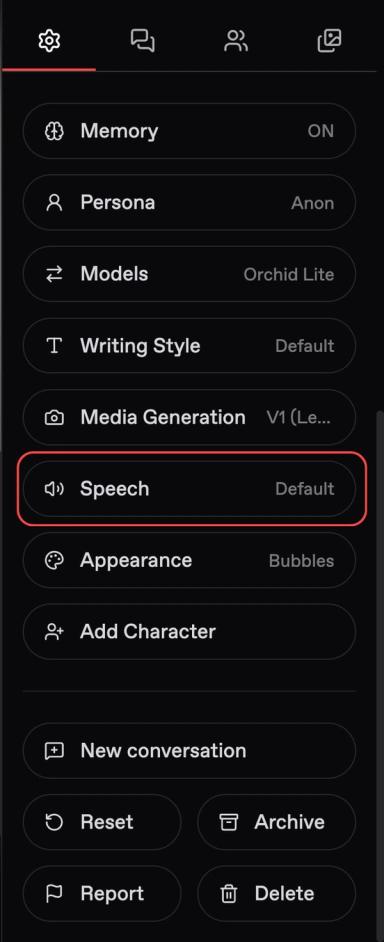
Open Chat Settings, then choose Speech to adjust the narrator and your companion’s voice.
Turn the narrator on or off
Dialogue is what your companion says. Narration describes actions and the scene.
Use Enable Narrator to choose whether narration is read aloud too.
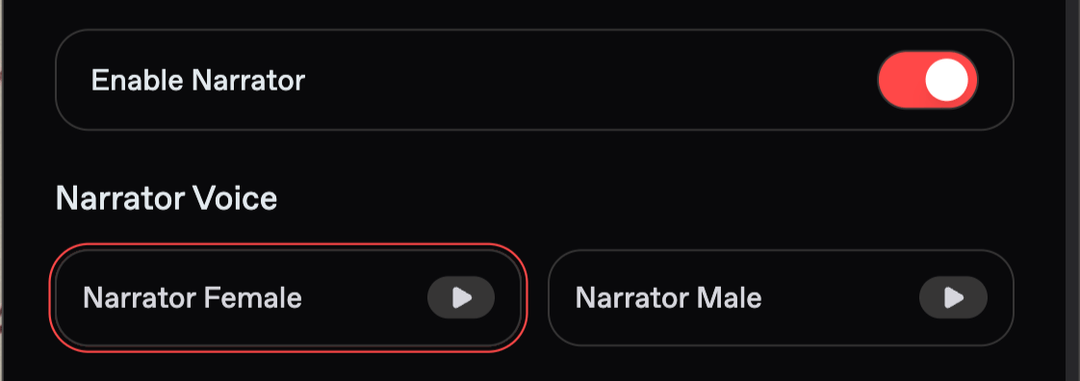
Enable Narrator | What you hear |
|---|---|
On | Dialogue and narration, with a separate voice for the narrator |
Off | Your companion’s dialogue only |
For this reply:
Mika sets down her coffee. “You made it.”
On: The narrator reads “Mika sets down her coffee.” Your companion reads “You made it.”
Off: You hear only “You made it.”
Turn the narrator off when you want to focus on the spoken conversation. Keep it on when you want to hear the scene descriptions too.
Pick the narrator's voice
With narration on, you may choose either a Narrator Female or Narrator Male. Use the play button beside a voice to preview it.
Pick your companion's voice
Under Companion Voice, you get a library of ready-made voices.
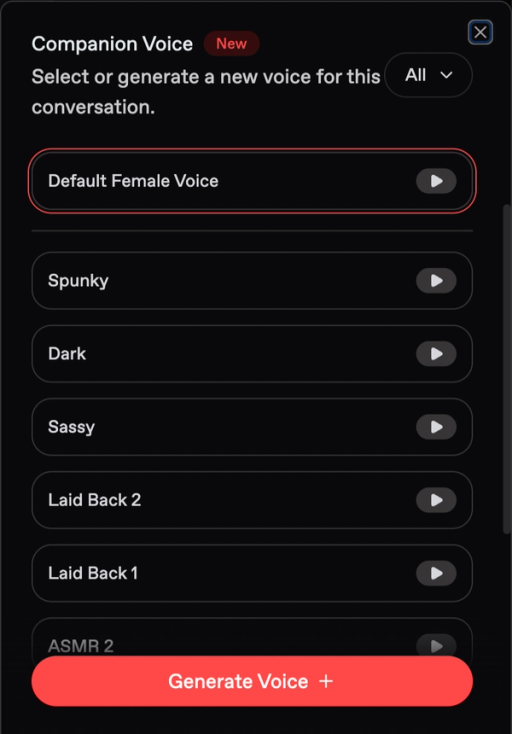
This selection applies to the current conversation.
To edit the voice on the companion’s profile, use its Voice field. See Editing and Managing Companions.
Use the dropdown at the top right to filter the list:
Filter | What it shows |
|---|---|
All | All available voices |
Official | Nectar’s built-in voices |
Your Voices | Voices you have generated |
Voice calls
Calls are charged by the minute, separately from your subscription. Check the displayed rate before starting.
Open a conversation and tap Call at the top.
Allow microphone access if your browser asks.
Wait for the call to connect, then speak.
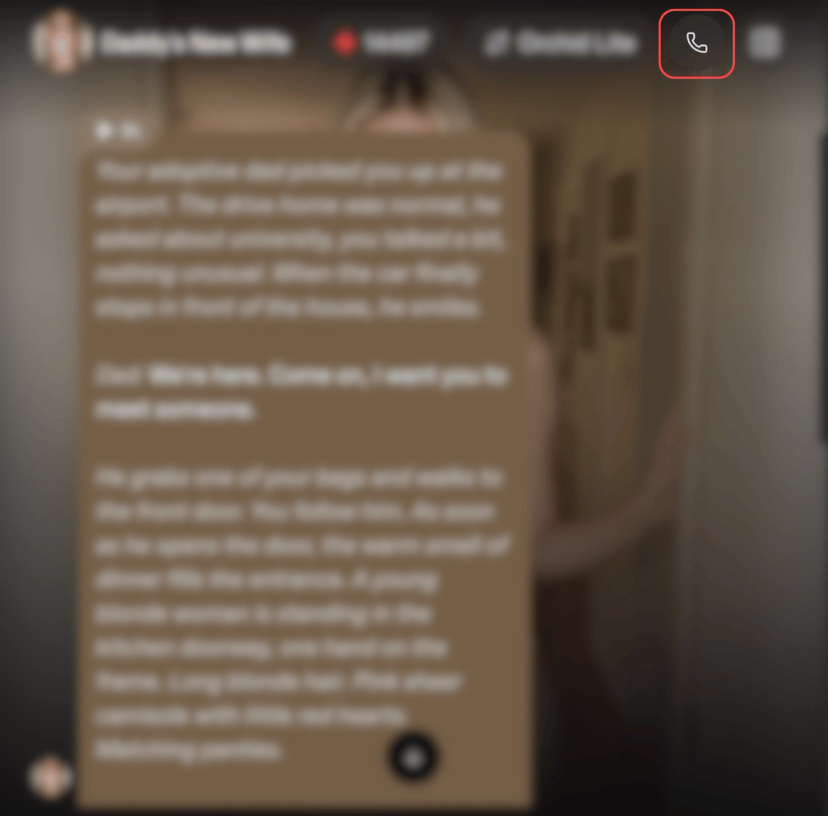
What a call is like
Once connected, speak to your companion and listen for their response.
You can interrupt. Start speaking while your companion is talking. They will stop and respond to what you say.
Use this to add a detail, ask a question, or change the direction of the conversation.
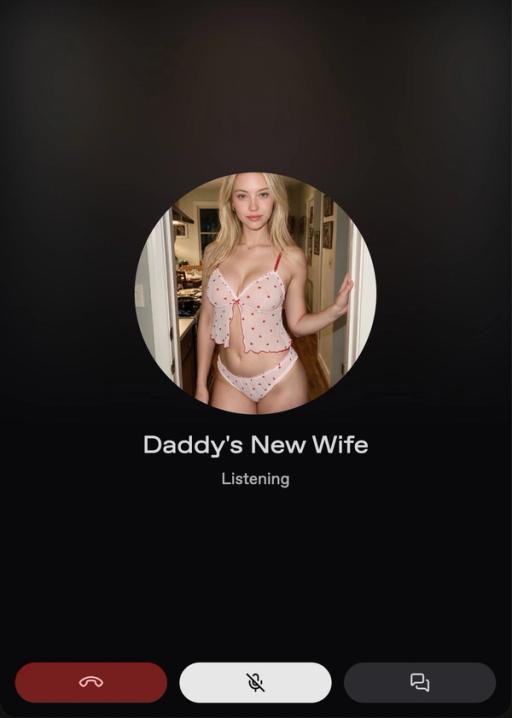
Use the call controls as needed:
Control | What it does |
|---|---|
Mute | Turns off your microphone while keeping the call open |
Hang up | Ends the call |
Transcript | Shows a written record of the conversation |
What to expect
Be in a quiet space so your microphone can pick up your voice clearly.
If your companion cannot hear you, check if the call is muted and that your browser has microphone access.
When returning to text chat, restate any call detail you want to continue discussing.
For example:
Let’s continue planning the café visit we talked about.
Custom voices
Power tip
Before you try this: Try the ready-made voices under Chat Settings → Speech → Companion Voice.
To design a voice, tap Generate Voice + at the bottom of the list.
Name the voice and describe its accent, pace, and tone.
Check the displayed price, then tap Generate Previews.
Listen to the available previews.
Select the one you prefer, then use Bring to Life to save your choice.
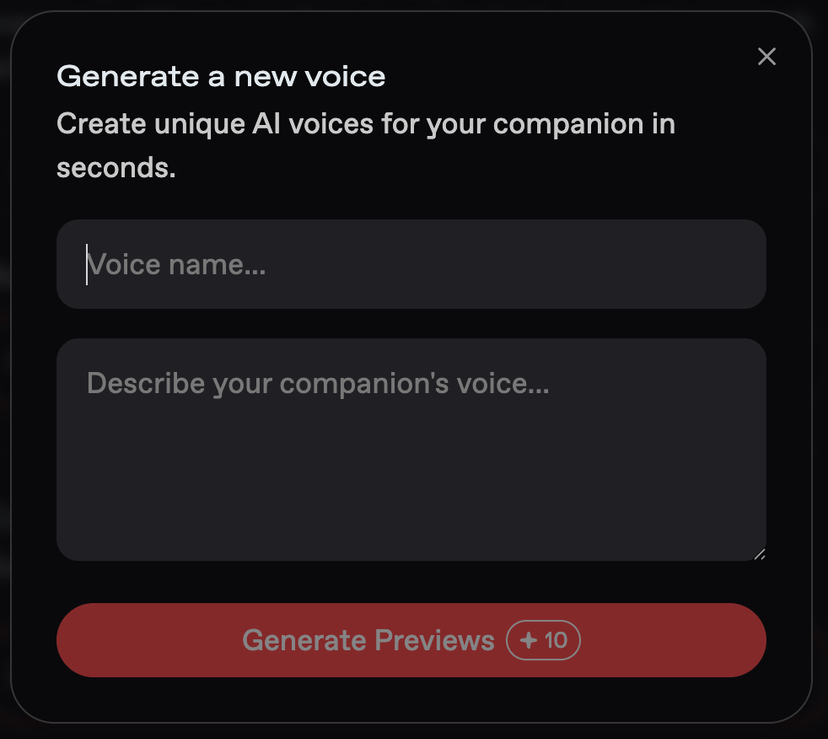
Once saved, your custom voice appears under Your Voices. You can select it for any companion.
Generating previews is a paid action. Check the displayed price before generating another set.
Writing a voice prompt
Describe how the voice should sound. Specific details give clearer direction than a broad label.
Less specific | More specific |
|---|---|
Sexy voice | Low, unhurried, slightly breathy, with a soft rasp at the end of sentences |
British accent | Southern English accent, crisp consonants, and measured pace |
Bubbly voice | Bright and quick, mid-twenties, words running together when excited |
Useful details include age, accent, pace, pitch, and texture. Texture describes qualities such as breathy, smooth, or raspy.
Compare the previews against the same questions:
Is the accent what you wanted?
Is the pace comfortable to follow?
Does the pitch and texture suit the companion?
If you want another variation, change one part of the description. For example, keep the accent and replace “quick” with “unhurried.”
Always preview before you save.
Quick fixes
Problem | What to try |
|---|---|
You want more dialogue and less narration | Turn off Enable Narrator in Chat Settings → Speech. |
The narrator reads punctuation aloud | Try another narrator voice or turn narration off. |
You want to respond before your companion finishes | Start speaking. Your companion will stop and respond to you. |
Your companion cannot hear you on a call | Check Mute and your browser’s microphone permission. |
The call does not connect | Check your connection and microphone access, then try again. |
You want a different custom-voice result | Adjust one detail, such as pace or texture, then compare new previews. |
You want a different companion voice | Try the ready-made options under Companion Voice. |
You have reached your voice-message allowance | Check Speech for the displayed overage price and your plan for allowance details. |
Last updated on