 Nectar AI
Chat Models
Your chat model is the AI option that writes your companion’s replies. Choosing a model helps you shape the style of your conversation.
Picking a model
To choose a model:
Open a conversation and tap the gear for Chat Settings.
Select Models.
Review the model cards and select the one you want to try.
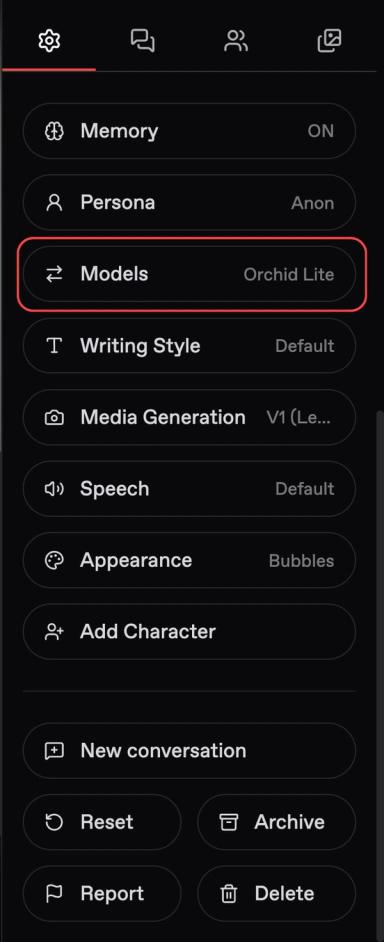
Chat models write text replies. Image and video models have separate controls.
Use these descriptions as starting points for exploring the six Models. Try them with your own companion to find the style you prefer.
Model | Style to explore | Try it for |
|---|---|---|
Nectar Basic Model | Simple, direct exchanges | Getting started, casual chatting |
Orchid Lite | Story-focused conversation | Developing a scene |
Fuchsia | Vivid, creative replies | Creative roleplay |
DeepSeek V4 Flash | A mix of action and dialogue | Dynamic roleplay |
Primrose | Detailed, emotional writing | Nuanced characters and scenes |
Orchid | Natural, immersive conversation | Character-focused roleplay |
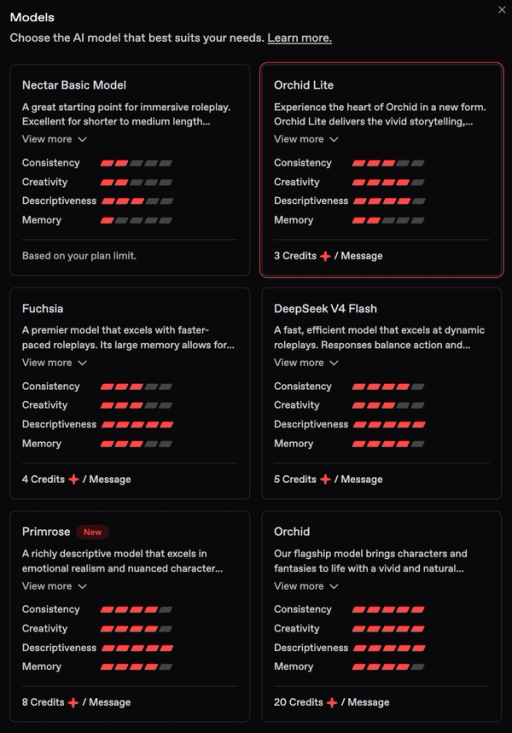
Check the model card for its displayed price or plan limit before sending a message with your selection.
What the stats mean
Model cards show four ratings:
Consistency: How well the model stays in character.
Creativity: How original its responses are.
Descriptiveness: How much detail it writes.
Memory: How well it tracks the recent conversation.
Use Nectar’s ratings to narrow your choices around what matters to you. For example, look at Descriptiveness when you want detailed scenes or Consistency when character behavior is your priority.
The Memory rating describes the model’s conversation tracking. The separate Memory feature has its own controls in Chat Settings.
Getting more out of your model
If you want longer replies, first open Chat Settings → Writing Style and choose Long. For a more specific preference, try a custom instruction such as “Respond with at least 800 characters.” Treat the number as a target, not an exact output length.
If you want speed over detail, try Short in Writing Style. Compare how quickly different models respond in your usual conversations.
If you want to emphasize your companion’s personality, choose a scene that gives them a chance to show it. A reserved character introducing themselves and a confident character leading a group should speak differently.
For response length and custom instructions, see Making Your Chat Better.
Power tip: Compare models with the same scene
Before you try this: Have a companion you know and a conversation style you want to build on.
Choose two models to compare.
Keep the companion, Writing Style, and custom instructions the same.
Give each model the same scene and message. Keep the preceding conversation as similar as possible.
Compare the replies using the qualities below.
Example message:
“We’ve arrived at a crowded party. You recognize someone across the room. What do you do?”
Compare | What to look for |
|---|---|
Personality | Does the response reflect the companion’s established traits? |
Detail | Does it give you the amount of description you want? |
Conversation flow | Does it give you something clear to respond to? |
Speed | Does the response time suit your preferred pace? |
One reply is a starting point. Continue for a few exchanges if you want a fuller comparison. Choose the model that suits your conversation, then refine your settings.
Last updated on