 Nectar AI
Editing and Managing Companions
Once you’ve created a companion, you can edit their age, physical traits, personality, voice, and greeting.
Their ethnicity, hair, eyes, and body type are set at creation and can’t be changed.
Check your plan’s editing access if Edit Companion isn’t available.
How to open the editor
Tap your avatar, then choose Profile.

Open the Companions tab.
Select the companion you want to change.
Open the three-dot menu. It contains Edit Companion, Archive Character, and Delete Character.
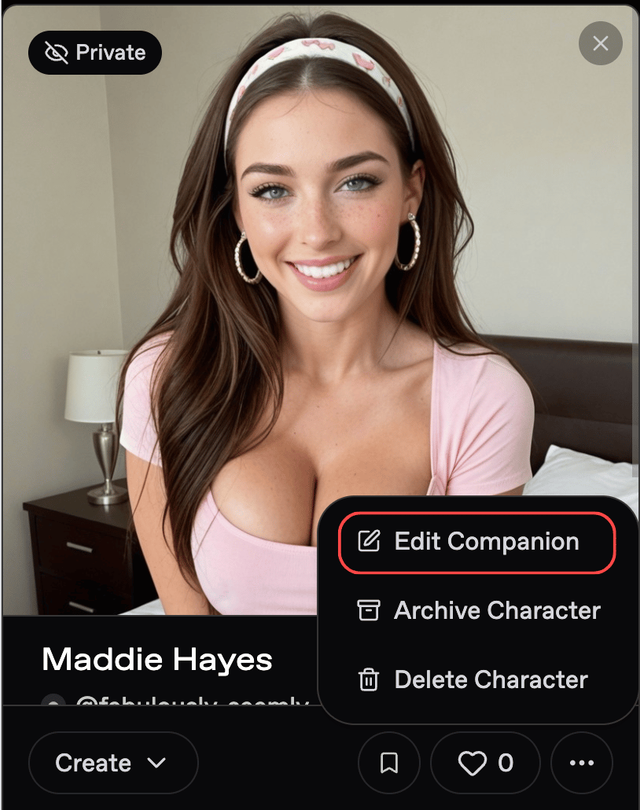
Choose Edit Companion.
Make your changes, then select Save.
What you can edit
The editor has two tabs.

Appearance
Field | What it controls |
|---|---|
Character Name | Your companion’s name |
Age | Their stated age |
Physical Traits | Additional appearance details, such as freckles, scars, or tattoos. See Creating a Companion |
Character
Field | What it controls |
|---|---|
Personality | Their background, behavior, and way of speaking. See Creating a Companion |
Voice | How they sound in voice calls and messages |
Greeting | The opening message for a new conversation |
Author Comments | Notes for people viewing your companion. Put character behavior in Personality. |
Greeting Media | A photo or video to accompany the greeting. Choose from the available media options. |
Save before switching tabs or leaving the editor. Reopen the field to check that your change saved.
After a Personality edit, try a few messages. Use a scene that gives your companion a chance to show the behavior you changed.
Power tip: Check one change at a time
Before you try this: Save your edit and confirm the updated text is in the field.
If you added “Mika deflects compliments with self-deprecating jokes,” try: “You handled that well.”
Keep the chat model and Writing Style the same while comparing. You may refine the instruction if you want a different response.
Changing the profile picture
Generate an image of your companion from chat or the image generator. See Image Generation.
Open the image and look for Submit as profile picture.
Review the submission details and follow the prompts.
Check the status shown in Nectar after submitting.
Cloning a companion
A clone is a new companion based on an existing one.
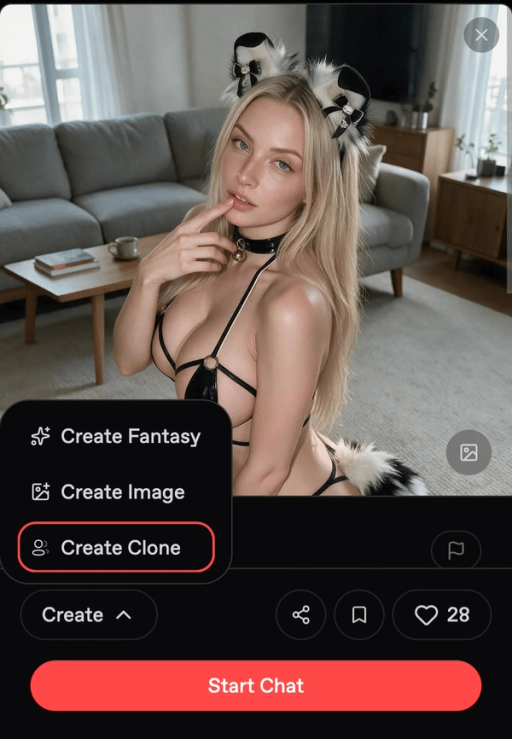
Saw a public companion you like? Open their card, select Create, then Create Clone.
Copied | Not copied |
|---|---|
Name, profile image, age, and Physical Traits | Personality, Greeting, and Author Comments |
Voice resets to the default voice. You can change the clone’s voice after creating it.
If your companion is public, anyone who clones it receives its Physical Traits and can read and edit them, and your Personality text stays readable on the companion’s card.
Write your own Personality before completing the clone. Add the greeting and voice you want to use.
Use View Clone Details when it is available to inspect the information Nectar shows about a clone.
For help writing Personality, read Creating a Companion.
Archiving and deleting
A companion is the character. A conversation is a chat with that character.
Nectar has separate controls for each. Check which one you are managing before choosing an action.
Companion actions
Open Profile → Companions, select your companion, then open the three-dot menu.
Action | What to check | Can you undo it? |
|---|---|---|
Archive Character | Review how archiving changes the character’s availability | Yes. Find the character under Profile → Companions → Filters → Archived, then choose Unarchive Character |
Delete Character | Read what will be removed and whether related chats or fantasies are affected | No. Deletion is permanent |
Conversation actions
Open Chat Settings inside the conversation.
Action | What to check | Can you undo it? |
|---|---|---|
New conversation | Use this to begin another chat with the companion | Not applicable |
Archive | Review how archiving changes access to the conversation | Yes. Find it using the archive icon at the top of your Chats list, then select Unarchive Conversation |
Reset | Check which parts of the conversation will be cleared | No. Reset cannot be undone |
Delete | Check which conversation and associated content will be removed | No. Deletion is permanent |
Keep a separate copy of any character text or story details you want to preserve before resetting or deleting. Use Archive when you want the option to restore later.
Last updated on