 Nectar AI
Creating a Companion
Create a companion for the appearance, personality, and conversations you have in mind.
Building a companion takes two kinds of work: picking how they look and writing who they are.
Before you start
Creating a companion is free. Free and Premium plans let you create one companion. Pro and above offer unlimited companion creation.
You don’t need a fully formed character. Spend a moment to think about:
Who are they? A shy librarian. A cocky personal trainer. A mysterious stranger at a bar.
How do they talk? Formal or casual? Sarcastic or sincere?
What’s the dynamic? Old friends? Strangers? Coworkers with tension?
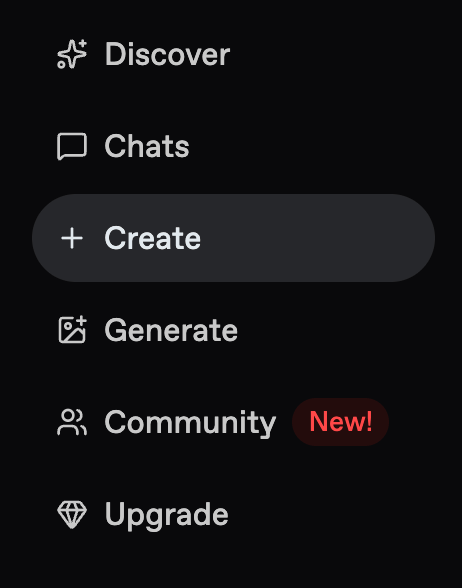
Where to start: Open your profile and choose Create Companion, or select Create from Nectar’s navigation.
Choosing how they look
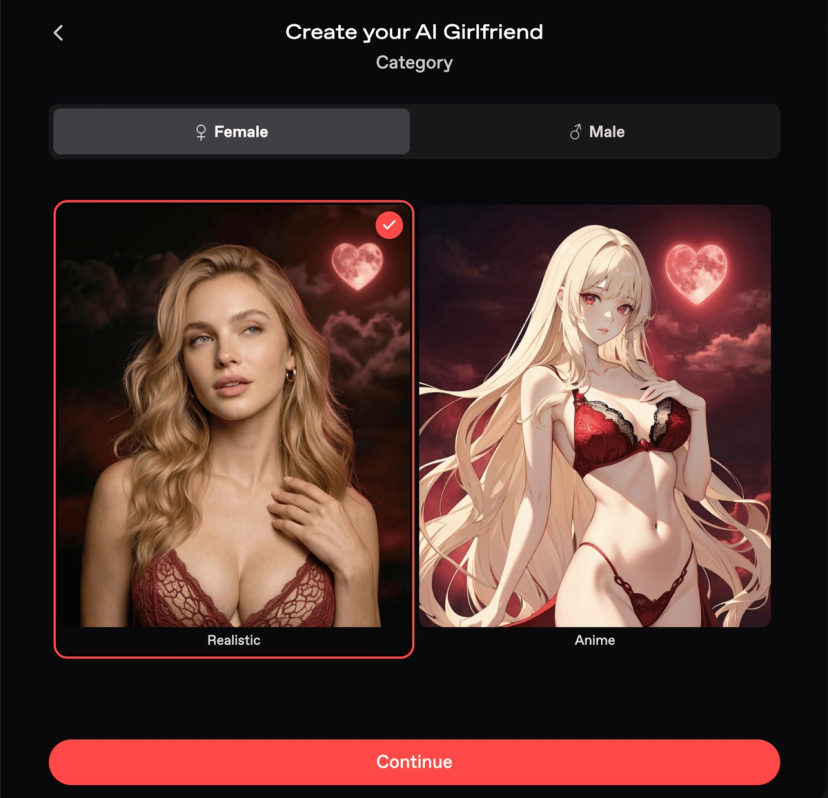
Choose Standard to build from presets.
Ethnicity, hair, eyes, and body type can’t be changed after creation, so choose carefully. You can edit the age later.
Step | What you choose |
|---|---|
1. Choose a Starting Point | Select Standard, then Continue. |
2. Category | Choose from the character categories and styles shown. |
3. Ethnicity & Age | Choose an ethnicity and an adult age. |
4. Hair & Eyes | Pick the hairstyle, hair color, and eye color. |
5. Body Type | Choose the available body options. |
6. Additional Information | Add the character details described below. |
If the creation flow shows Preferences, choose the content preferences you want. Turn off the NSFW setting there if you want a SFW companion.
Photo Reference
For a reference-based starting point, choose Photo Reference → Reference Image → Choose Image.
The picker offers Generate, Likes, and Link. The Link option asks for a Nectar Image URL.
Use an original fictional adult character. Nectar’s content rules prohibit characters based on recognizable real people.
Filling in the details
The Additional Information screen is where your companion turns into a character.
Field | What it's for |
|---|---|
Name | The name your companion usually goes by. Put full names and titles in Personality. See below |
Voice | Choose how your companion sounds in voice calls and messages. |
Personality | Describe their behavior, background, and relationship with you. |
Visible to public? | Turn this on if you want others to find and chat with your companion. Public companions go through review before appearing on Discover. |
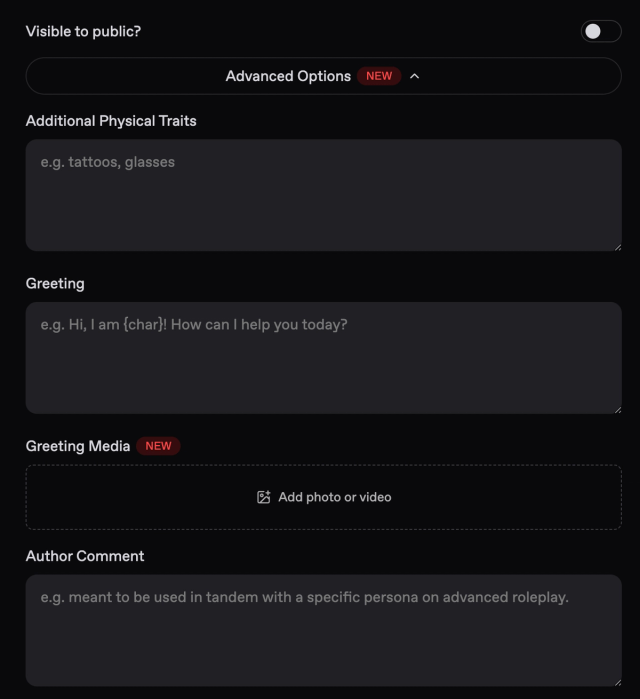
Advanced Options also lets you add:
Field | What it's for |
|---|---|
Additional Physical Traits | Describe lasting appearance details, such as freckles, scars, or tattoos. See below |
Greeting | Write the first message your companion sends. Use it to introduce the scene and their voice. |
Greeting Media | Add a photo or video to accompany the greeting. |
Author Comment | Write notes for people viewing your companion, such as a suggested starting scenario. Put character behavior in Personality instead. |
For example, “Try a quiet conversation after Mika’s shift” belongs in Author Comment. “Mika uses dry humor when she is tired” belongs in Personality.
To add Greeting Media, open its control, choose from the available media options, and check the selected item before completing your companion.
Preview and publish
Review your choices under Appearance and Character.
Check the name, Personality, Greeting, and any Greeting Media.
Review Visible to public? to choose the visibility you want.
Select Complete to generate a profile from your settings.
Review the generated companion. Use Reroll if you want another appearance.
Select Bring my AI to life to create the companion and open your chat.
Reroll generates a different companion from the same settings. For example, blonde hair, blue eyes, and a curvy body type produce another companion with those same traits. Reroll until you find the look you want.
Check the appearance before selecting Bring my AI to life. Ethnicity, hair, eyes, and body type are locked after creation. Age can still be edited.
Writing a good personality
Character Builder, listed in the Community tab, is an optional starting point for drafting your character.
What to put in the Personality field

Personality can describe more than traits. Use it for the background, relationships, and behavior you want to guide your companion’s replies.
For example, if their job matters to your story, write it here so the conversation has a clear starting point.
Choose the details that matter:
Personality: A few defining traits and how they show up.
How they talk: “She speaks in short sentences” or “He speaks formally and avoids slang.”
Background: Adult age, job, hometown, education, family, or hobbies.
Relationship: How they know you and the relationship you want to establish.
Story details about their looks: An appearance detail that matters in conversation.
Clothing by situation: “Wears scrubs at work and hoodies at home.”
Full name and titles: Put Mika in Name and “Dr. Mika Jones. Friends call her Mika.” in Personality.
Fantasy or sci-fi details: Powers, abilities, and relevant world details.
Rules: Behaviors you want to encourage or avoid.
A compact starting profile could look like this:
Name: Dr. Mika Jones. Friends call her Mika.
Age: 32.
Pronouns: She/her.
Work: An emergency physician who works night shifts.
Personality: Caring, observant, and dryly funny. She deflects compliments with self-deprecating jokes.
Voice: Short, casual sentences with friends. Clear, direct language at work.
Relationship: You are an old friend meeting her after a shift.
Clothing: Scrubs at work and hoodies at home.
How to write your companion’s personality
Use keywords for facts and sentences for behavior. For example: “Age: 27. Job: nurse. She’s sarcastic and takes time to trust people.”
Describe what they do, not just what they are.
Weak | Strong |
|---|---|
She is funny | She deflects compliments with self-deprecating jokes |
She is mysterious | She answers personal questions with questions of her own |
She is caring | She remembers small details about people and brings them up later |
Give rules a response to use. Instead of saying “Never reveals the secret,” try “Keeps the secret. If asked, she changes the subject with a joke.”
Keep it focused. Put defining facts first. Very long Personality text can prevent replies from generating. If you see Internal Server Error, shorten this field while keeping the key facts.
Start small. Try a few exchanges before deciding what else the character needs.
Power tip: Test one trait at a time
Before you try this: Create your companion and have a short conversation.
For Mika, try:
“You handled that well.” Does her response reflect her dry humor?
“What should we do after your shift?” Does the scene fit her work schedule?
“Tell me about your job.” Does her background stay consistent?
If you want a clearer behavior, refine that part of Personality and try a similar scene. Keep the chat model and Writing Style the same while comparing.
For a fantasy or sci-fi character, describe an ability, its limits, and how the character uses it before adding more world history.
Additional Physical Traits

Use Additional Physical Traits for lasting appearance details, such as tattoos, scars, or freckles. Keep the description specific and easy to read.
Put temporary choices, such as a pose or an outfit for one picture, in that image’s prompt.
Adding a detail here reaches new images. Removing one does not, because your companion keeps the appearance it already has. Treat this field as something you add to rather than rewrite.
Detail | Where to put it |
|---|---|
Mika has a small scar above her left eyebrow | Additional Physical Traits |
Mika touches the scar when she is thinking | Personality, if you want this behavior in the story |
Mika wears scrubs at work and hoodies at home | Personality |
Mika wears a red coat in this picture | The image prompt |
For more control over your companion’s pictures, see Image Generation.
Writing a good greeting
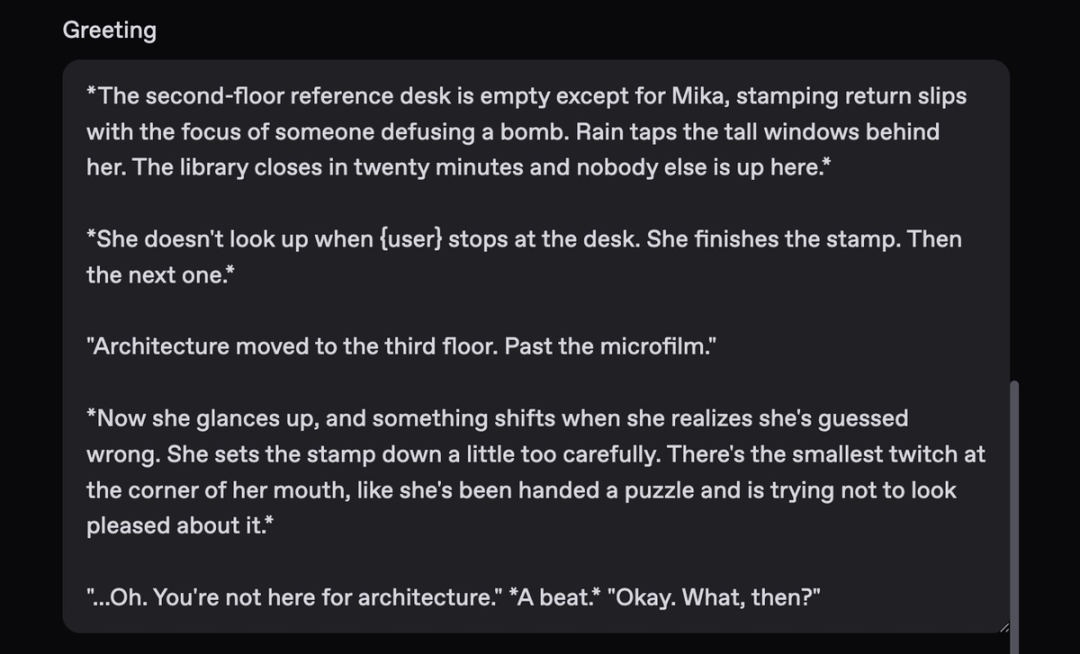
The greeting is the first message your companion sends. Use it to introduce the setting, demonstrate their voice, and give you a clear way to respond.
Format it the way you want the chat to read
Text outside straight double quotes appears as narration. Put spoken dialogue inside straight double quotes.
Wrap it in | Use it for | How it appears |
|---|---|---|
Plain text or | Actions, narration, and scene description | Italic text |
| Spoken dialogue | Regular text |
Asterisks are optional for narration. They are hidden in the displayed greeting.
Use straight quotes, not curly ones
Nectar recognizes straight double quotes for dialogue:
Use:
"You're late."Avoid:
“You're late.”
Curly quotes won’t display as dialogue. If you draft outside Nectar, turn off smart quotes or replace them before saving.
Example
The example below shows how to separate narration and dialogue.
What makes a greeting work
Set the scene. Start in a coffee shop, a late-night text exchange, or a chance encounter.
Name the location. Give the conversation a concrete place to begin.
Match the voice. If your companion is playful, let the greeting demonstrate that.
End with a hook. Give the reader something to respond to: a question, a challenge, or an invitation.
Keep it to 2–4 paragraphs. Establish the mood and leave room for a reply.
Use placeholders for names. Nectar replaces these when the greeting appears:
{user}becomes the active persona’s name, or “Anon” if no persona is set.{char}becomes the companion’s Name field.
Things to know
SFW companions are supported. Turn off NSFW in Preferences during creation.
Public companions go through review before they appear on Discover.
Follow Nectar’s content rules. Use original fictional adult characters and review the current guidelines.
Last updated on