 Nectar AI
Your First Chat
Find a companion, start a chat, and learn the controls you need for your first conversation.
Starting a conversation
Open ☰, then Discover. On mobile, you can also tap Explore in the bottom navigation.
You’ll see two tabs at the top: Companions and Fantasies.
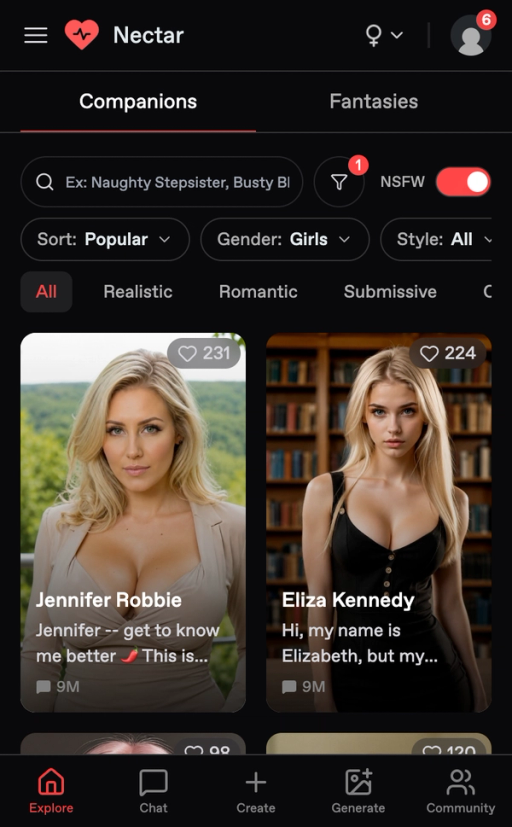
Companions are individual AI characters you can chat with one-on-one.
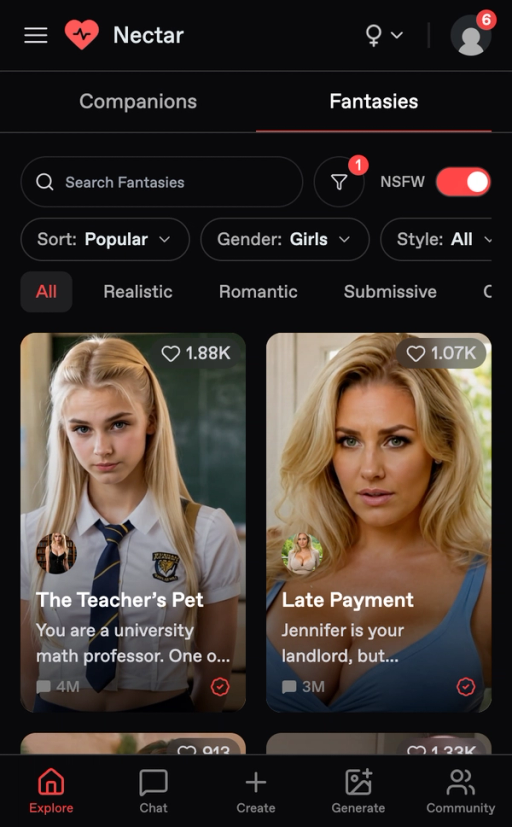
Fantasies are ready-made scenarios featuring one or more characters. A fantasy with several characters is a group chat.
For your first conversation, choose Companions. You can use the filters below to find someone who interests you.
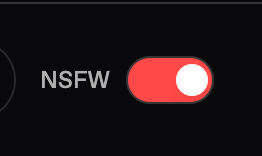
NSFW toggle
Look for the NSFW switch beside the search and filter controls on Discover. Turn it off to browse SFW companions and content.
The switch controls browsing visibility. Nectar’s content rules still apply.
Filtering companions
Use the category tags on Discover to narrow your choices. For example, choose Romantic if that is the kind of conversation you want.
For more categories:
Open the filter icon beside the search box.
Use Search Tags to find a category.
Select the categories you want.
Both the category tags on Discover and the searchable filter list support multiple selections.
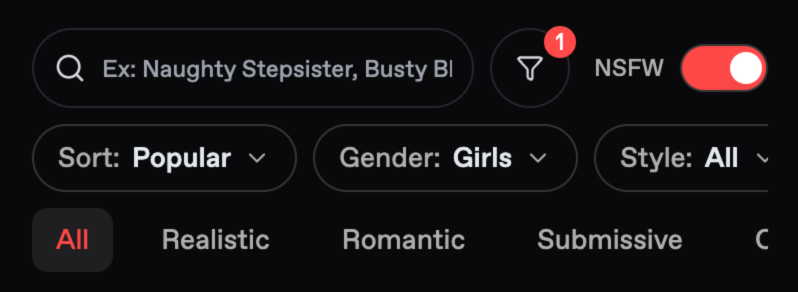
You can also use Sort, Gender, and Style to narrow the results.
Pick a companion, open their details, and select Start Chat.
Your companion speaks first
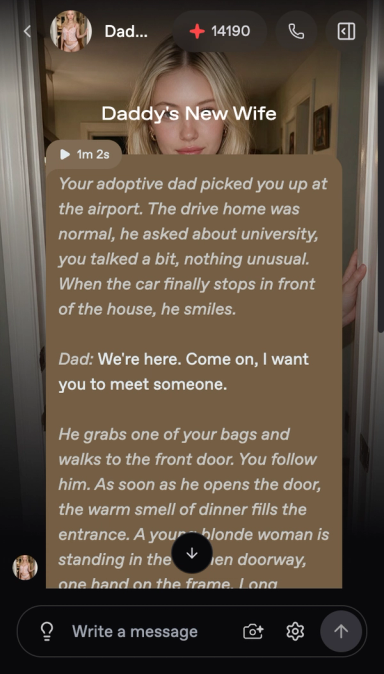
When you open a chat, your companion sends a greeting, the opening message that introduces the conversation.
Read it before replying. It may give you a setting, a relationship, or a question to respond to.
Writing your first messages
You set the pace. To move a scene along, say what you want to happen next.
Give them something to react to. “Hi” gives the companion little to work with. “I just got in from the rain and I’m freezing” gives them a situation to respond to.
Write the way you want them to write. Your first few messages help set the pattern for the chat.
Name the place and who else is around. Add these details when they matter to your scene.
For example, a conversation could continue like this:
You: “I just got in from the rain and I’m freezing.”
Companion: “Come sit by the heater. What happened to your umbrella?”
You: “I left it on the train. Could I borrow a towel?”
Type your reply in Write a message, then tap the send arrow. If the response follows your setup, keep going. If it misses a detail, clarify it in your next message.
For more ways to shape replies, see Making Your Chat Better.
The chat interface
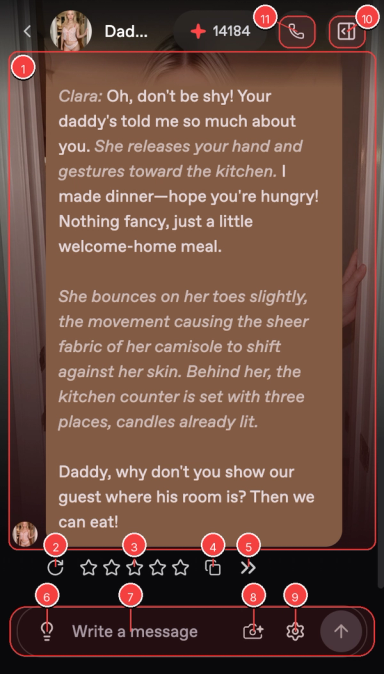
Conversation area: Read your messages and replies.
Regenerate: Get a different reply.
Stars: Rate a reply.
Copy: Copy a message.
Continue: Let your companion keep going.
Lightbulb: Get reply suggestions.
Text input: Write your message.
Camera: Open image and video options.
Gear: Opens Chat Settings.
Customization panel: Open the top-right panel for the tabs below.
Call button: Start a voice call.

Settings: Adjust your chat.
Conversations: Find your other chats with this companion.
Cast: See who is in the conversation.
Gallery: View the chat’s images and videos.
Message limits
Message limits depend on your plan and selected model. Only messages you send count toward your message allowance. Companion text replies have no separate charge. See Plans & Pricing for details, and check the displayed price before a paid action.
If you reach a limit, check the notice shown in Nectar for your available next step.
Dynamic chat backgrounds
To check or change your chat background, open Chat Settings → Appearance and review the available options.
Last updated on