 Nectar AI
Video Generation
How to start
Start with a description, or turn an existing image into a video.
Open the generator. Tap Generate in the navigation menu, then set Type to Video. You can also use the chat routes described in Image Generation.
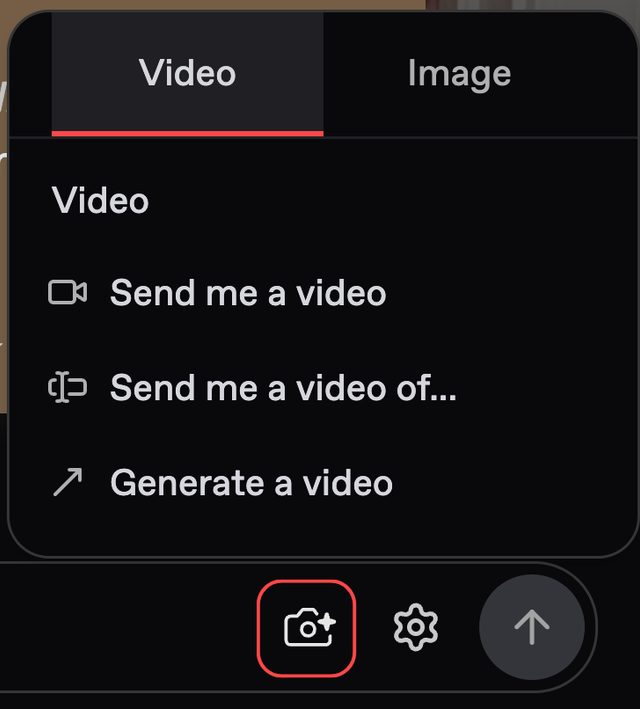
Or turn an image into a video. Open an image your companion sent in chat. Tap the video button in the bottom-right corner.
This route offers High and Standard options. These are separate from the Model Version options in the main generator.
Using the generator
Set Type to Video, then pick a model. Your choice changes the rest of the form.
Field | What to choose |
|---|---|
Model | Choose whether to use companions or a prompt alone. See below. |
Companions | With Nectar Companion Model, select up to 10 companions for the video. |
Model Version | After selecting a companion, choose an available Model Version. Use V3 for the first-video steps on this page. Video controls differ from the image options in the model breakdown. |
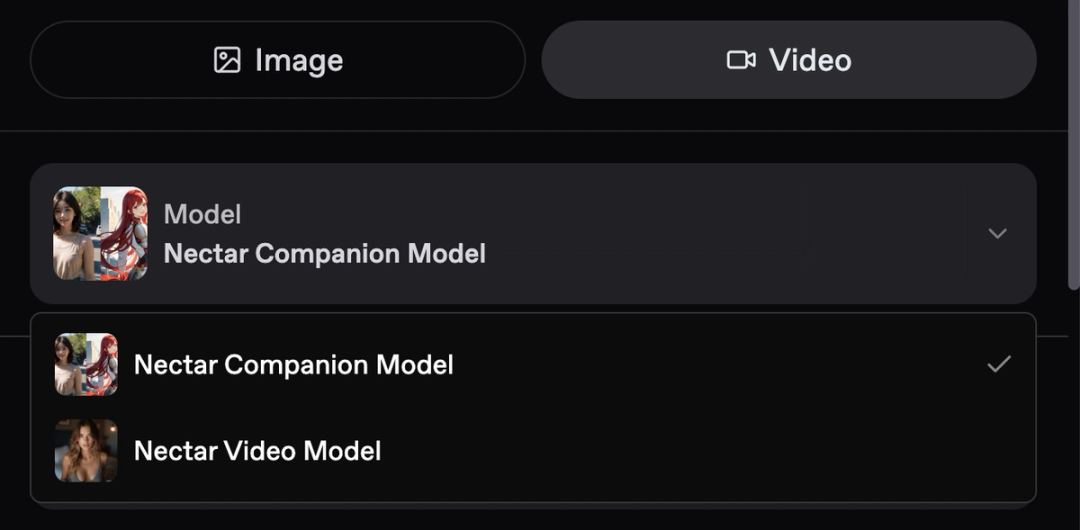
Model | What you get |
|---|---|
Nectar Companion Model | A video featuring the companions you select. |
Nectar Video Model | A video from your prompt alone. |
For your first companion video:
Choose Nectar Companion Model.
Select one companion.
Choose V3.
Set the length to 5 seconds and quality to 720p.
Describe one simple action.
Check the displayed price, then tap Create.
For example:
Mika sits at a café table in a blue sweater. She lifts her coffee mug, looks toward the viewer, and smiles. Morning window light. Keep the viewpoint still.For help describing clothes, settings, and lighting, see Image Generation.
V3 model for Video Generation
Use V3. It adds sound and lets you choose the length and quality. Other versions are silent.
Length: 5, 10, 15, 20, 25, or 30 seconds.
Quality: 480p, 720p, or 1080p. These numbers describe the video’s resolution. Extend Video is not available on 480p clips.
Audio: Included automatically. Describe speech or background sounds in your prompt.
Longer clips and higher resolutions have higher displayed prices. Start with a short clip to try your idea before making a longer version.
Adding sound
Write what you want to hear in the same prompt box as the scene.
For example:
Rain taps against the café window. Mika says softly, "Stay for one more coffee."Keep spoken lines short enough to fit the clip. Describe the speaker’s tone or accent when it matters.
Make it longer
If Extend Video is available on your finished clip, open it and choose one of the offered lengths.
Follow the steps under Extending a video below.
For several companions, use separate descriptions for each person. See Multiple companions on Image Generation.
Writing better prompts
These description tips from Image Generation work for video too:
Put your companion somewhere specific: name the place and light source.
Name the style: live-action, anime, or oil paint.
Keep the scene focused: one viewpoint, one time of day, and one location.
Describe clothes clearly: put the outfit before less important body details.
Change one thing at a time: compare results before making another adjustment.
Video adds movement. Start with one clear action per clip, such as “she turns and smiles.”
Build the clip in beats
Power tip
Before you try this: Make a short V3 video first. Then choose a longer duration when you want a sequence of actions.
A beat is one part of the scene. Timed blocks describe what you want to happen in each part. This technique is supported on V3.
Match the blocks to your selected length. For a ten-second clip, try two five-second blocks.
Use this format for each block. Replace the bracketed text with your details:
[Start time] - [End time]: [place, lighting, viewpoint].

[Companion name]
[Clothes, position, and action.]

[Speaker name, tone]: "Short line."
Here is a complete ten-second example:
0s - 5s: Café table in morning window light. Still viewpoint.

Mika
Wearing a blue sweater. Seated opposite the viewer, with both hands around a white coffee mug. She looks up and smiles.

[Mika, warm tone]: "You made it."

5s - 10s: Same café table and morning window light. Still viewpoint.

Mika
Still seated in her blue sweater. She sets the white mug on the table, then nudges the menu toward the viewer.

[Mika, playful tone]: "Breakfast first?"
Re-anchor each companion at every beat. This means restating their clothes, position, and current action so the next part has clear direction.
Keep lines short. Leave enough time for both speech and movement.
Use timestamps to organize the sequence. Keep the actions simple enough to fit each block.
Directing dialogue
Power tip
Before you try this: Use V3, which includes audio. Name each speaker and allow enough time for their line.
Put the speaker’s name and delivery notes before the dialogue:
[Speaker, accent, tone, gaze]: "Dialogue."For example:
[Alice, slight Swiss accent, confident tone, looking toward the viewer]: "Okay, let's go! Zero deaths!"This separates who speaks from how they speak. Use the delivery notes to guide the accent, tone, and gaze.
For several companions, put each speaker’s line on its own line.
Extending a video
If Extend Video is available on your finished clip, open it and choose one of the offered lengths.
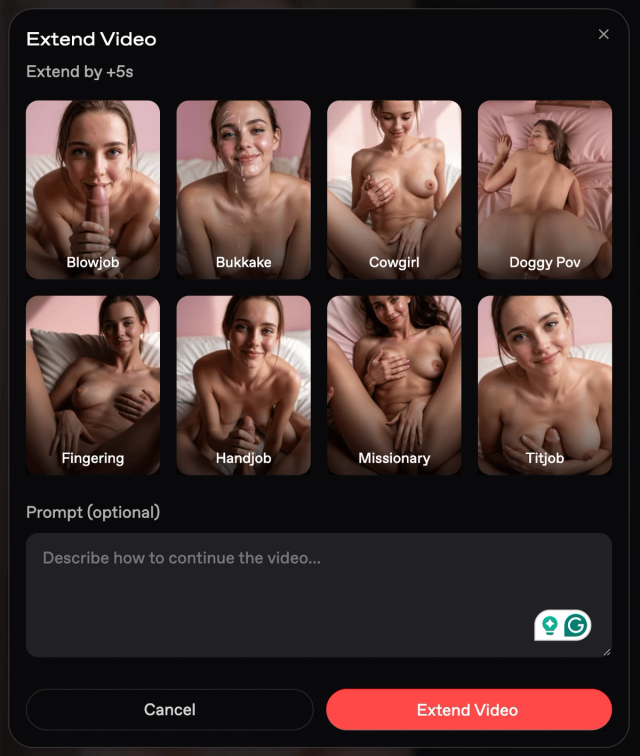
Open the video and tap Extend Video.
Choose an action from the preset chips.
Choose an extension length shown for that clip.
Add an optional prompt to direct what happens next.
Review the displayed price, then confirm.
For example:
Mika keeps her blue sweater on. She sets the coffee mug down and turns toward the window. Keep the same café lighting and viewpoint.Check the duration and price in the extension dialog before confirming.
Watch the clip before extending it. Check that:
The intended companions are present.
Their appearance and clothes match the scene.
The movement ends where you want the next action to begin.
Any speech sounds the way you want.
Choose a clip you want to continue, then describe the next action.
What to do with a finished video
Remix
Remix opens the generator with the video’s model, companion, prompt, and Icks already filled in. Icks describes what to leave out.
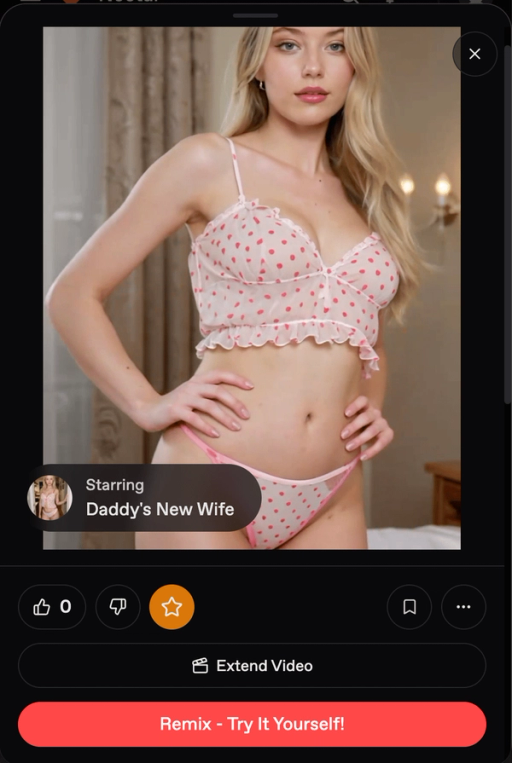
Use it to make a variation without rebuilding the setup. Change one thing, then create again.
For example, keep the café scene and change Mika’s action from lifting her mug to waving.
Remix also works on other users’ gallery videos when the option is available.
Copy the prompt and other actions
Open a video to see its available actions.
Action | What it does |
|---|---|
Copy Prompt | Copies the text used to describe the video. |
Copy Icks | Copies the details to leave out, also called the negative prompt. |
Submit to be featured | Submits the video for public featuring. Use this when you want to share it publicly. |
Submit as profile picture | Starts the process of using it as the companion’s profile picture. |
Bookmark | Saves it for later. |
Thumbs up / down | Rates the result. |
Generating in the background
Videos generate in the background while you keep chatting or browsing. Ultimate subscribers can run up to four video generations at once.
The placeholder may say “Generating Image” while your video is processing. This is normal. You are charged when the generation finishes.
Find your videos under My Creations in the gallery. My Likes and Suggested are separate browsing views.
Video messages
Ultimate subscribers can request videos in chat. Tap the camera icon in the message bar, then choose the Video tab.
You can also attach a video to a companion’s greeting through Greeting Media.
Last updated on