 Nectar AI
Fantasies
A fantasy is a scenario featuring one or more companions. The setup, setting, and your role are written before you begin.
A fantasy can include one companion or a cast, the characters taking part in the story. A fantasy with several companions is a Group Chat.
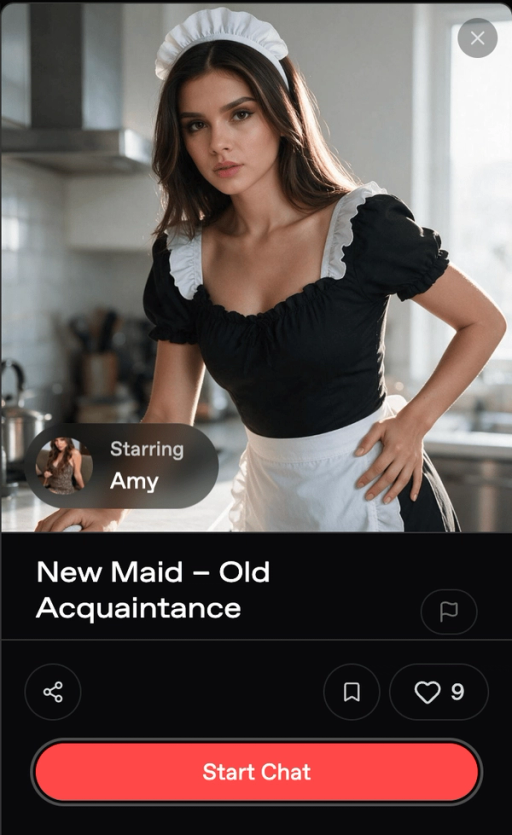
What a fantasy adds
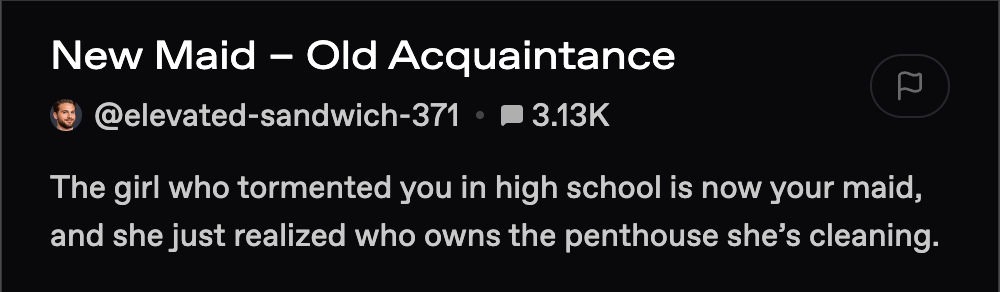
A premise. The description gives you the starting situation before you select Start Chat.
A role. The description may cast you as someone in the story, such as a professor or a stranger at a bar.
Finding one
Open Discover, then select Fantasies. On mobile, tap Explore to reach Discover.
Quick browsing
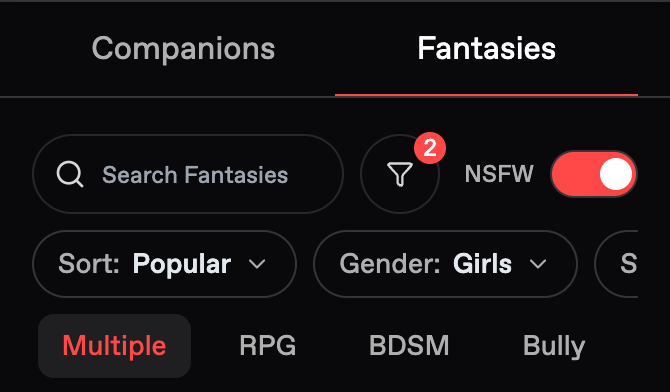
Sort: Choose the browsing order.
Gender and Style: Narrow the results.
Tag row: Choose categories that interest you.
Search: Look for a fantasy by name or keyword.
The filter panel
Open the filter icon beside search for more options.
Filter | What it does |
|---|---|
Groups Only | Shows fantasies with multiple companions |
Tags: + | Includes a tag in your search |
Tags: − | Excludes a tag from your search |
Tag sort | Orders tags by Default, A to Z, or Z to A |
What's on a fantasy page
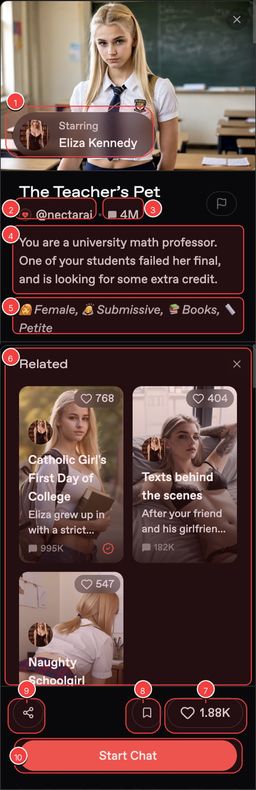
Starring: The featured companion.
Creator: Who made the fantasy.
Popularity: The displayed popularity indicator.
Description: Who you are, where you are, and what’s happening.
Tags: The kind of story.
Related: Other fantasies featuring the companion.
Likes: How many people liked it.
Bookmark: Save it for later.
Share: Copy a link.
Start Chat: Begin the story.
A fantasy with several companions shows a Cast list.
Browse Related to find more stories with a companion you like.
Playing it
Read the description to understand your role and the starting situation.
Select Start Chat.
Read the opening messages.
Reply with what your character says or does next.
A fantasy uses the familiar chat buttons, settings, and models. See Your First Chat and Making Your Chat Better for help shaping the conversation.
The chat header shows the fantasy and its cast.
Add Character in Chat Settings brings another companion into the story. Adding a character permanently turns the conversation into a group chat, even if you remove that character later. See Group Chats.
Making your own
Open Create from Nectar’s navigation, then switch to Fantasy.
You can also open one of your companions and look for Create a Fantasy.
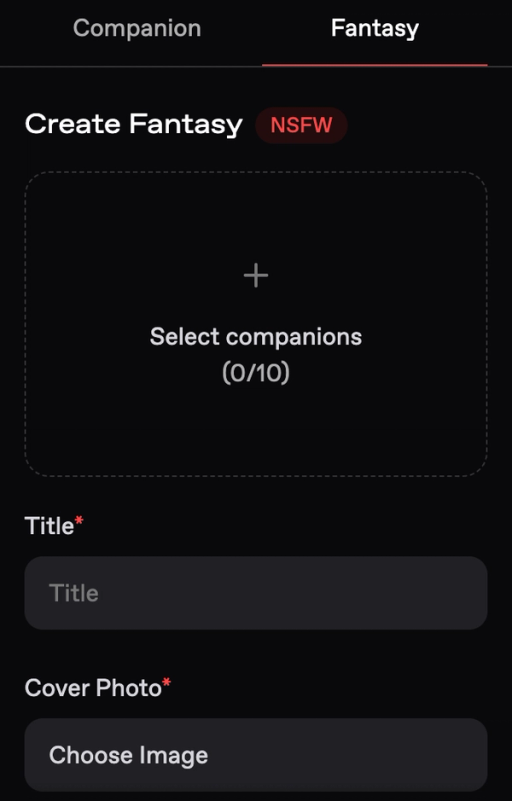
The form at a glance
Field | What to add |
|---|---|
Select companions | One companion, or several for a group chat. Up to 10 companions. |
Title | A short name for the story. |
Cover Photo | An image that introduces the setting or mood. Use Choose Image to select it. |
Description | The setup, the reader’s role, and what is happening. Up to 5,000 characters. |
Greeting | The opening messages. Each greeting allows up to 1,000 characters. |
Tags | Categories that help people find the fantasy. |
Visibility | Choose Private or Public. |
Example Dialogue | Optional sample messages under Advanced Options. |
Author Comments | Optional notes for readers under Advanced Options. |
1. Pick your cast
Tap Select companions to choose up to 10 companions for your story.
Tab | What's in it |
|---|---|
Discover | Public companions |
Saved | Your bookmarks and likes |
Create | A route to creating a new companion |
Start with one companion if you want a one-on-one story. For several characters, see Group Chats.
If you cannot find your own companion in the picker, open their page from your profile and look for Create a Fantasy.
Anime and realistic companions can share a cast. You can include both in the same fantasy.
2. Write the description
You have up to 5,000 characters.
Lead with the setup. Explain who the reader is, where the scene begins, and what gives them a reason to respond.
For example:
Field | Example |
|---|---|
Cast | Mika |
Title | Breakfast After the Night Shift |
Cover Photo | A café scene that matches the setting |
Description | “You’re Mika’s old friend, meeting her for breakfast after her hospital shift. She has a story to tell, but first she wants to know why you arrived late.” |
Keep the description and greeting consistent. If the description places you in a café, open the greeting there too.
3. Write the greeting
The greeting opens the story. Put dialogue in straight double quotes and use narration to describe the scene.
For formatting and examples, see Writing a good greeting.
With one companion selected, the form shows one greeting field. With two or more, you can add up to six greetings:
Write the opening message.
Select its speaker from the dropdown above the field.
Use Add Greeting for another entry.
Use the drag handles to arrange the entries in the form.
When the fantasy starts, every greeting posts in order as a separate message from its speaker. The order in the form is the order readers see.
Each greeting allows up to 1,000 characters.
To attach media, select Add photo or video beneath the greeting. Choose the media and check that it is attached to the intended entry.
4. Advanced options
Example Dialogue gives a sample of the conversation style you want. It is separate from the greeting.
Before you try this: Choose your cast and write the description and greeting.
Open Advanced Options → Example Dialogue.
Choose a companion as the first speaker and write their message. The companion must speak first.
Select Add Dialogue to add another entry.
Choose User or a companion as the next speaker, then write their message.
You can add up to 10 entries, with up to 1,000 characters per entry.
Use an exchange that demonstrates the behavior you want:
Generic | More specific |
|---|
| Mika: “Work was tiring.”
User: “How was your shift?” | Mika: “I negotiated a ceasefire with the coffee machine. How did your night go?”
User: “Less dramatic. Did you at least get your coffee?” |
The second exchange demonstrates Mika’s dry humor and gives the reader a question to answer.
Author Comments are notes for readers. For example: “Start with a relaxed breakfast conversation.” Put instructions about Mika’s behavior in the character or story setup instead.
5. Tap Create
Review your cast, description, greetings, cover, and visibility. Then tap Create.
Choose Public only when you want to share the fantasy. Follow any review or status information that Nectar displays after submission.
Fantasies with more than one character
When a fantasy has several companions, they can talk to you and to each other. That’s a Group Chat.
Look for the Multiple tag on the fantasy page, or use Groups Only while browsing.
A fantasy can include up to 10 companions. For choosing speakers and managing the conversation, see Group Chats.
Things to know
Follow the fantasy’s setup. Read the description and opening messages to understand the story you’re joining.
Introduce any past events that matter. Describe the background you want to use rather than assuming that another chat’s events are saved to this story.
Check visibility before creating. Review the text and media you intend to share.
Last updated on