 Nectar AI
Customizations
There are two ways to skip writing a prompt from scratch: ready-made customization tiles and the Enhance button. A prompt is the description you give the generator.
What customizations are
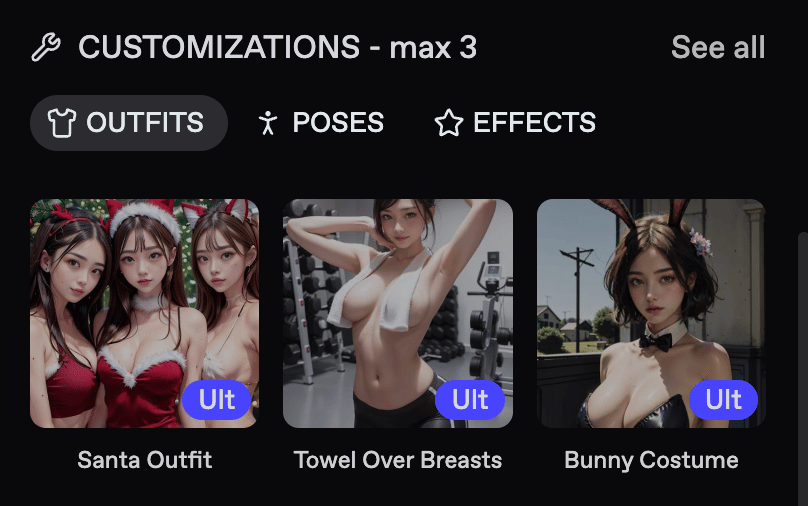
Customizations are ready-made tiles for details such as outfits, poses, and visual effects. Choose a tile instead of describing that detail yourself.
Open Generate, choose Image or Video, and select a model. Look for Customizations in the form.
Choose your image or video model.
Open a customization category.
Select the tiles you want.
Review your selections and remove anything that you no longer want before generating.
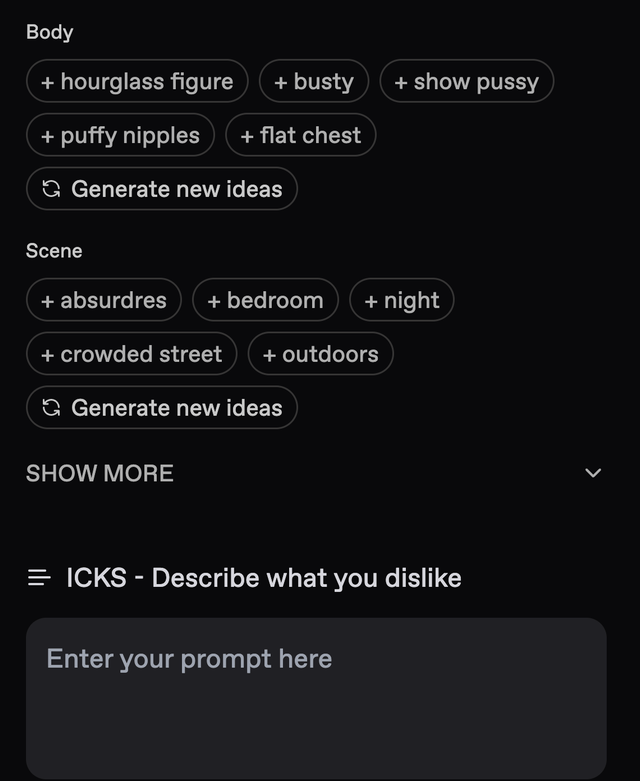
Use your prompt for the rest of the scene. For example, select an outfit tile, then describe Mika sitting at a café table in morning light.
Keep the two consistent. If you select a dress, avoid asking for jeans in the same prompt.
Categories
The categories you see depend on your model and whether you are making an image or a video.
Category | What it changes |
|---|---|
Styles | The overall visual treatment |
Faces | Facial features |
Outfits | Clothing |
Poses | Body position and framing |
Effects | Lighting, grain, and atmosphere |
Check the selector for how many tiles you can apply at once.
Enhance button
The Enhance button sits next to the prompt box in Generate. It expands a rough idea into a more detailed prompt for an image or video.
Write your idea in the prompt box.
Check the displayed price, then tap Enhance.
Read the expanded prompt.
Edit or remove details you do not want.
Tap Create when the description matches your idea.
Enhance is a paid action each time you use it. Check its displayed price before tapping.
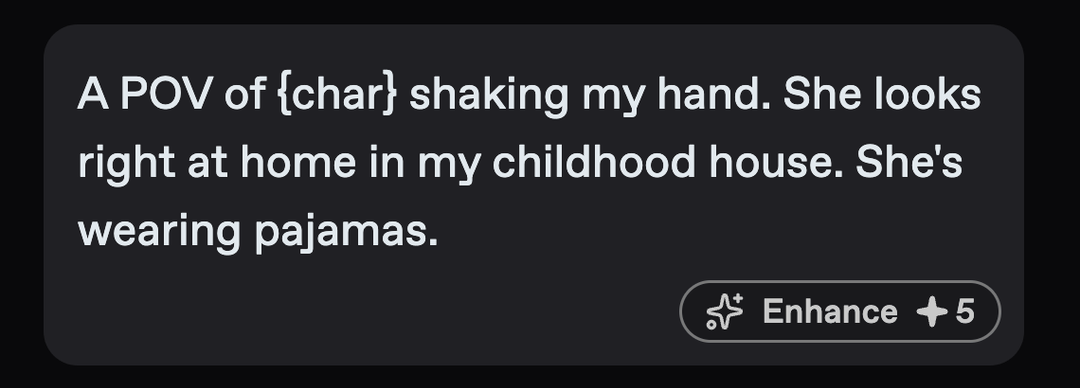
You write:
Enhance gives you back something closer to:
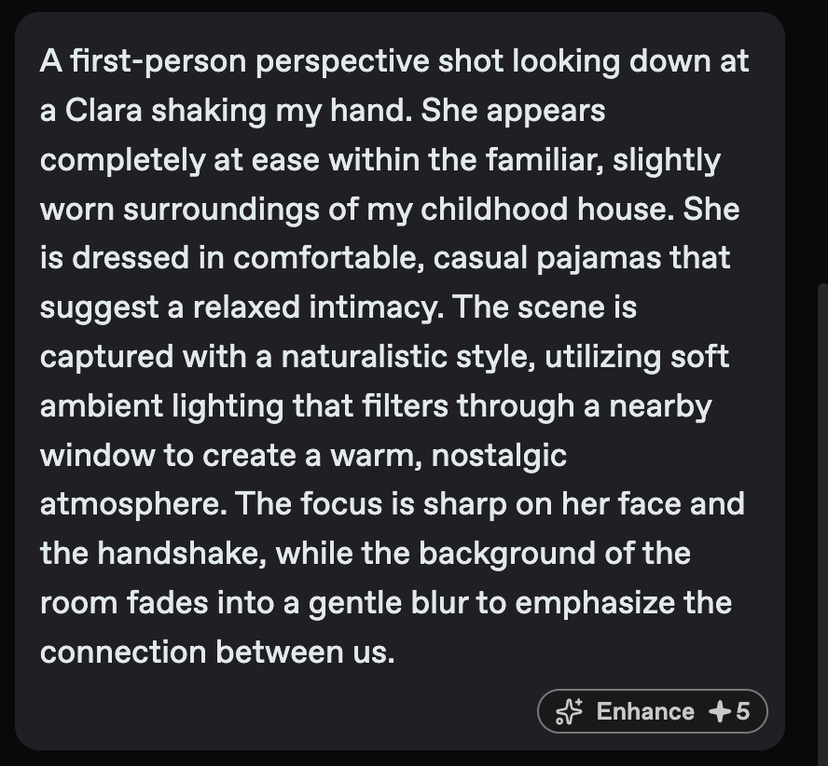
Here is a short example of the kind of detail to look for. The exact wording will vary.
Before:
Mika having coffee at a café.More detailed prompt:
Mika sits at a wooden café table, holding a white coffee mug. Warm morning light comes through the window. Waist-up view.The expanded description adds a position, a prop, lighting, and framing. Keep those additions only if they fit your scene.
Read it over before you tap Create. Check the companion, outfit, setting, and action. For video, also check that the movement and dialogue fit your chosen length.
Power tip
Before you try this: Have a prompt that already gives you a result you like.
Keep a copy before using Enhance. Compare the two versions and keep the useful additions. If your original uses model-specific syntax, check whether it remains in the expanded prompt.
When to reach for Enhance
Reach for it when… | What to look for in the result |
|---|---|
You know the scene but not how to describe it | Useful details about lighting, framing, and surroundings |
You want a more specific scene | Concrete actions and objects that fit your idea |
You are combining customizations | A description that agrees with your selected tiles |
You are using V3 | Clear, natural sentences that describe the scene |
If your prompt already describes what you want, you can go straight to Create.
Last updated on